
Contact our prepress - We can help!
Our Pre-Press department prides itself in quality control and customer service.
If you ever have a technical question that need to be answered, give us a call!
801-975-7105 ext: 109 or 108
email: graphics@westwindlitho.com
Do you need to send us files?
PDF Files Preferred
Although we can work with most every file type. PDF is our preferred file format. Please follow these standards when exporting your PDF:
- Export as single pages (not spreads)
- Read order (1 – end)
- Set Bleed at .125″
- Crop marks only
- Crop marks offset .125″
- High resolution (300 DPI)
High Res & Imposed Proofs
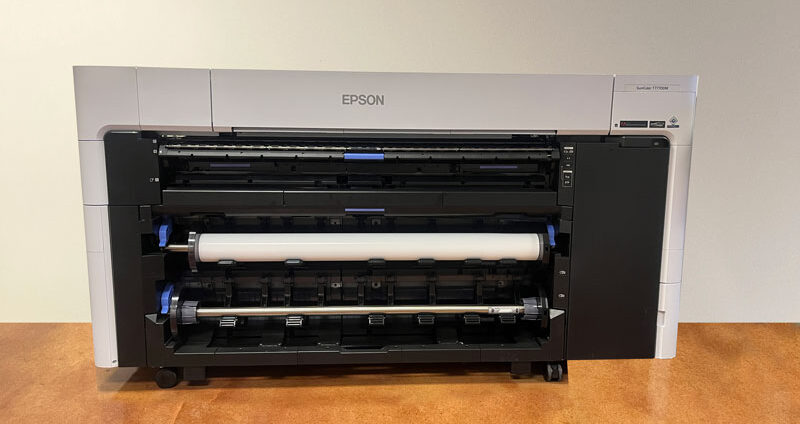
True-to-color, true-to-size proofs can be produced for any project using the Epson SureColor printer. *Paper stock may vary.
A Folded and bound example of your print project can help catch many issues you may have missed on screen. We can quickly create one upon request. Color and paper are NOT reflective on imposed proofs. It is an affordable alternative to a high res proof.
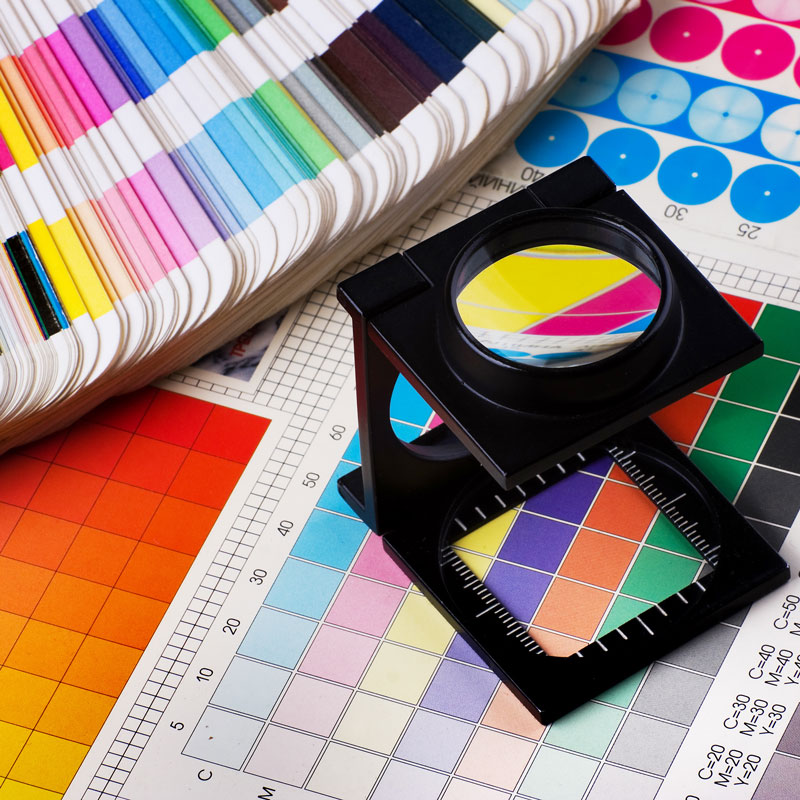
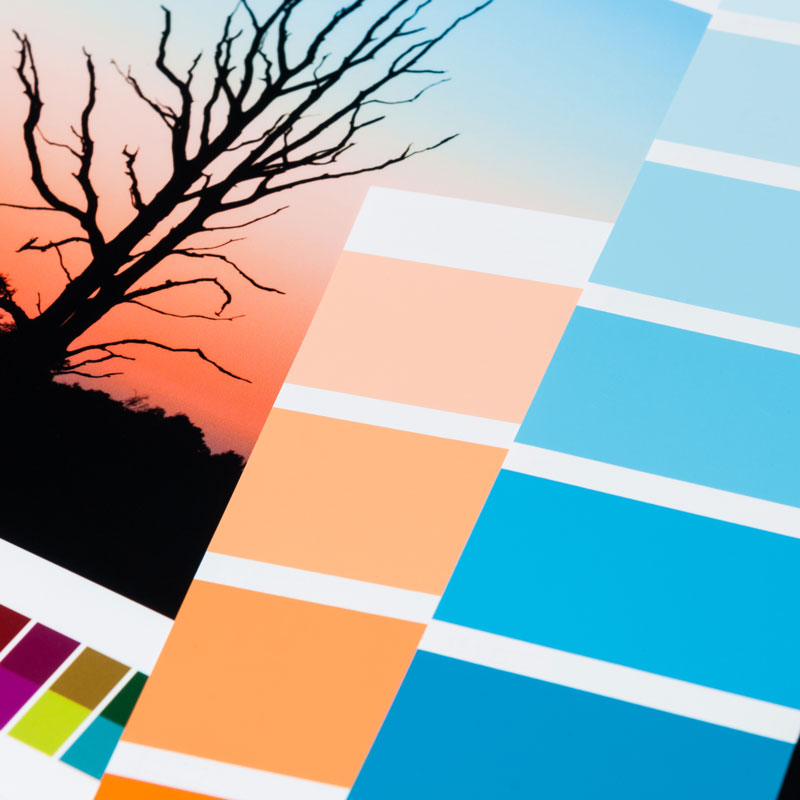
West Wind Litho wants your project to look the best.
Follow these guidelines and your project will turn out looking amazing.
Bleeds
We like our bleeds to be 1/8” (.125) inch. The majority of the jobs that we print need the ink to go to the edge of the paper. Bleeds refer to the area beyond the edge of the paper, where the image must extend. When we print your art, we will print larger than the final size then cut the project down to the final size, eliminating any white borders on the edge of the paper. In most of the design and layout software, the user can specify the size of bleeds.
Collecting your files to send
InDesign provide a function within their programs that collect and package all of the elements, including your fonts and package them for sending to us. This function is called “Package” in InDesign, it is found under the File tab.
Canva
Canva.com is a user-friendly, cloud-based graphic design platform that allows users to create social media graphics, presentations, videos, documents, and other visual content using drag-and-drop tools. Here are the important standards when using Canva.com.
- Use “PDF Print” for all professional jobs.
- Turn on “Crop marks and bleed” in the download settings.
- Ensure the project has bleed, which is .125″ of extra color or image that is trimmed off when it is cut to finished size.
- Switch to CMYK (Pro feature) for better color accuracy.
- Check uploaded images to ensure they are high-resolution.
Resolution
Resolution refers to the size and quality of the images being placed. We like to see images at a 300dpi. This will ensure that your images look clean and not pixelated.
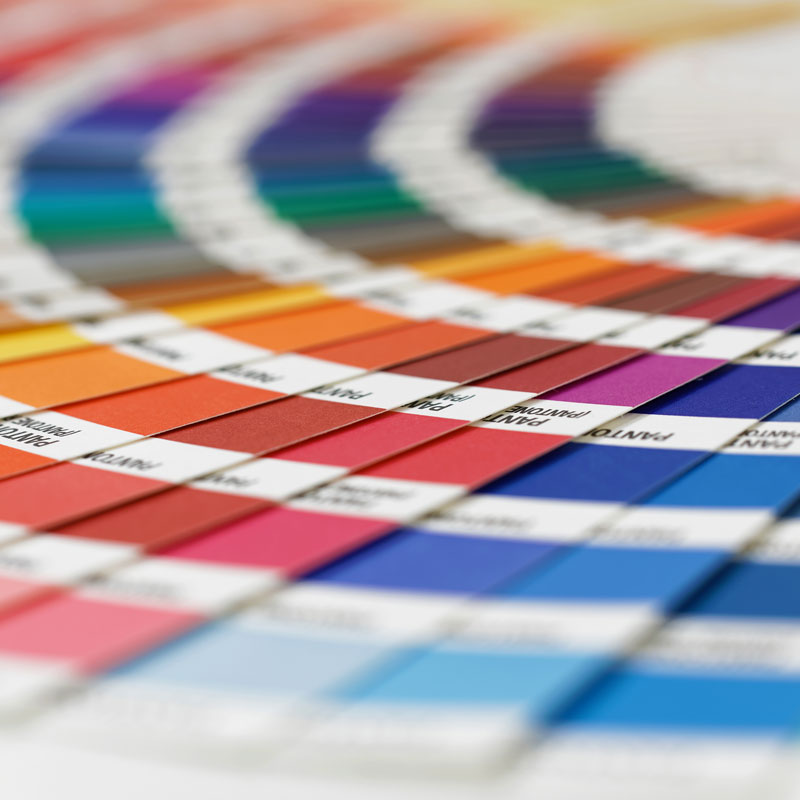
Also, note that if you have not already done so, we will convert your files from RGB to CMYK. CMYK refers to the four inks used in color printing: cyan, magenta, yellow, and key (black). Though it varies by print house, press operator, press manufacturer and press run, ink is typically applied in the order of the abbreviation. Pantone colors are another option.
Indesign
InDesign users can select “Package” under the File Menu. A box will open and request instructions, which provides the opportunity to tell us what you need to complete. This step is not necessary and users can select “Continue.” You will then be presented with a dialog box requesting the name of the folder to save the elements. At the bottom of the window are a series of check boxes; these are your options of what we collect. The first three check boxes are the most important, Copy Fonts, Copy Linked Images and Update Graphic Links in Package. Click on Save, once the InDesign file is finished, copy this folder to your media or compress (ZIP) the file and send it to us.